Check out Use Mailchimp for Shopware 5 to learn more about working with Shopware 6.
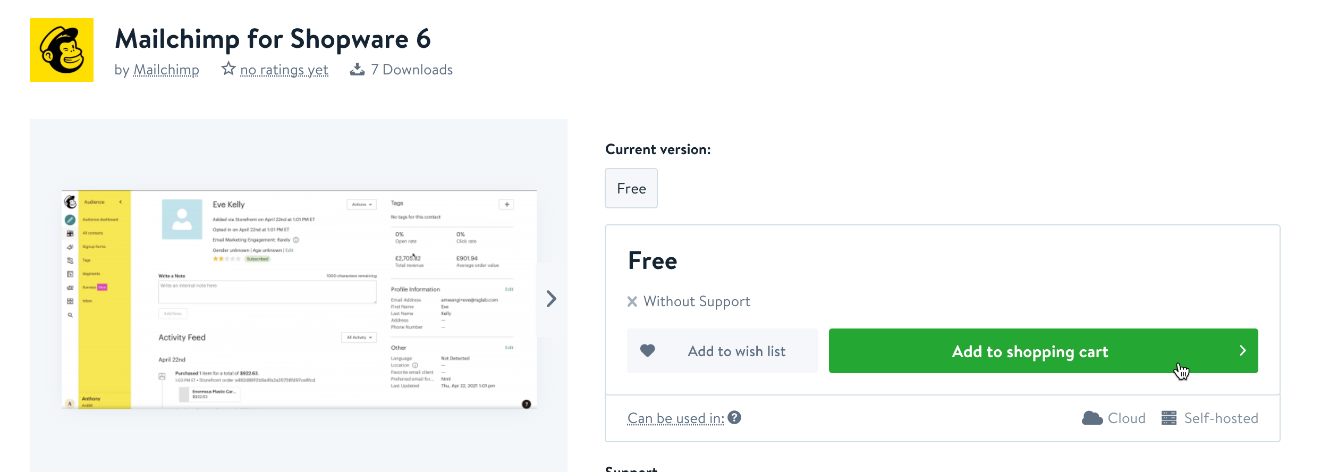 Click Proceed to checkout.
Log into your Shopware account, review the order, accept the Terms and Conditions, and click Send order.
Click Proceed to checkout.
Log into your Shopware account, review the order, accept the Terms and Conditions, and click Send order. 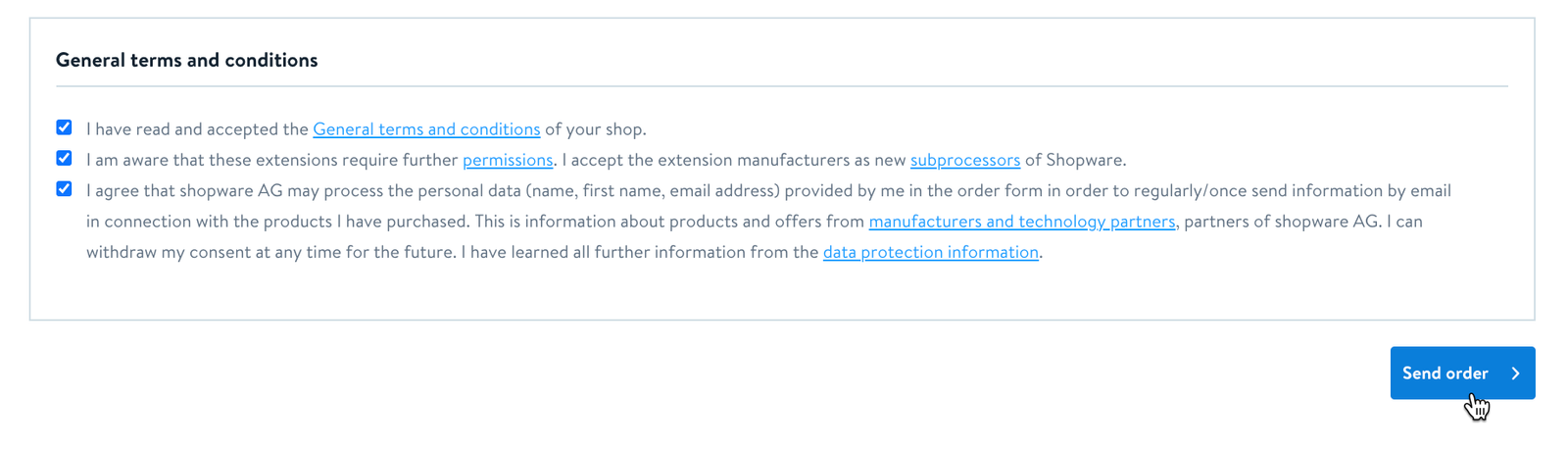 Find the Mailchimp for Shopware 6 entry, and click Install app.
  On the pop-up modal, review the permissions you’ll be granting the Mailchimp for Shopware 6 app and click Accept and install.
Click Open app.
Enter your Mailchimp account details and click Log In.
Review the authorization details and click Allow.
Select the Shopware 6 sales channel and Mailchimp targeting audience you want to connect then click Save.
Choose how to synchronize your customers and click Create New Connection.
On the pop-up modal, review the permissions you’ll be granting the Mailchimp for Shopware 6 app and click Accept and install.
Click Open app.
Enter your Mailchimp account details and click Log In.
Review the authorization details and click Allow.
Select the Shopware 6 sales channel and Mailchimp targeting audience you want to connect then click Save.
Choose how to synchronize your customers and click Create New Connection. 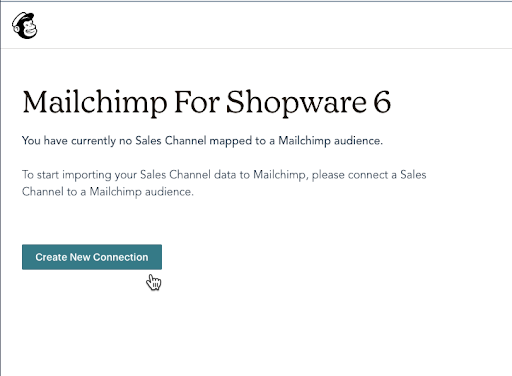 That’s it! Your sales channel will begin to sync to your Mailchimp audience.
 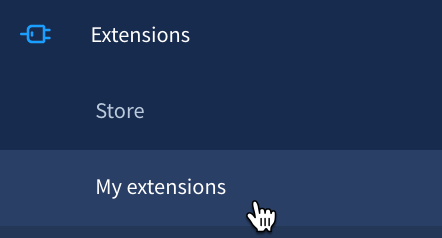 Find the Mailchimp for Shopware 6 entry, and click the […] icon.
Choose Cancel and remove.
Find the Mailchimp for Shopware 6 entry, and click the […] icon.
Choose Cancel and remove.
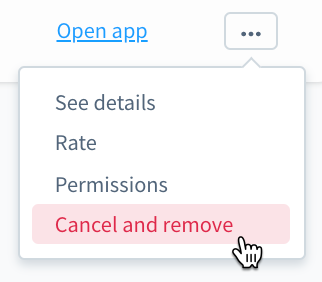 On the pop-up modal, confirm your decision by clicking Cancel and remove.
That’s it! Your Shopware 6 integration is disconnected.
On the pop-up modal, confirm your decision by clicking Cancel and remove.
That’s it! Your Shopware 6 integration is disconnected.